gold-miner: analyzes unknown traffic
The gold-miner tool is the core of the package that takes a
training profile created using both gold-miner-trainer and
gold-miner-trainer-aggregator and uses it to try and predict an
unknown traffic source.
Example Invocation
The following example command line processes a PCAP file containing unknown data (unknown.pcap) using a training-profile created from the gold-miner-trainer gold-miner-trainer-aggregator tools. It specifically looks for the mail label. Note that multiple labels can be passed to the -g flag in order to compare various values to determine what the best guess might be.
gold-miner -r unknown.pcap -p training-profile.fsdb -g mail
Example Output
The output includes a bunch of columns in a tab-separated file (called an FSDB file). Example output may look like:
Interpreting Tab-Separated Value Output
The output of this utility by default is a FSDB formatted dataset containing (see below for turning on json output instead):
#fsdb -F t timestamp:d identifier token confidence total:l
1612276702.252115    (50, '10.0.3.2', '10.0.6.2')    email-client    0.019922011881270296    1
1612276702.252115    (50, '10.0.3.2', '10.0.6.2')    email-server    0.09949107222576414     1
1612276702.252115    (50, '10.0.3.2', '10.0.6.2')    https-client    0.1108216386959876      1
1612276702.252115    (50, '10.0.3.2', '10.0.6.2')    https-server    0.0     1
1612276702.252115    (50, '10.0.3.2', '10.0.6.2')    ftp-client      0.0     1
1612276702.252115    (50, '10.0.3.2', '10.0.6.2')    ftp-server      0.0     1
...
1612276796.641313    (50, '10.0.3.2', '10.0.6.2')    email-client    0.7168803043442527      1400
1612276796.641313    (50, '10.0.3.2', '10.0.6.2')    email-server    0.21853768852005073     1400
1612276796.641313    (50, '10.0.3.2', '10.0.6.2')    https-client    0.09337264365783604     1400
1612276796.641313    (50, '10.0.3.2', '10.0.6.2')    https-server    0.3331007977800903      1400
1612276796.641313    (50, '10.0.3.2', '10.0.6.2')    ftp-client      0.06126245747562031     1400
1612276796.641313    (50, '10.0.3.2', '10.0.6.2')    ftp-server      0.16666655917372097     1400
The columns in question contain:
a packet timestamp
an identifier (5-tuple, 3-tuple or IPSec specific)
a token being searched for (eg: “mail”)
a confidence value 0-1
the packet counts seen per identifier so far
Example Graph
The multi-key-graph tool that comes with the multikeygraph python package can be used to graph the results:
multi-key-graph -k token -c confidence -o graph.png gold-mine-output.fsdb
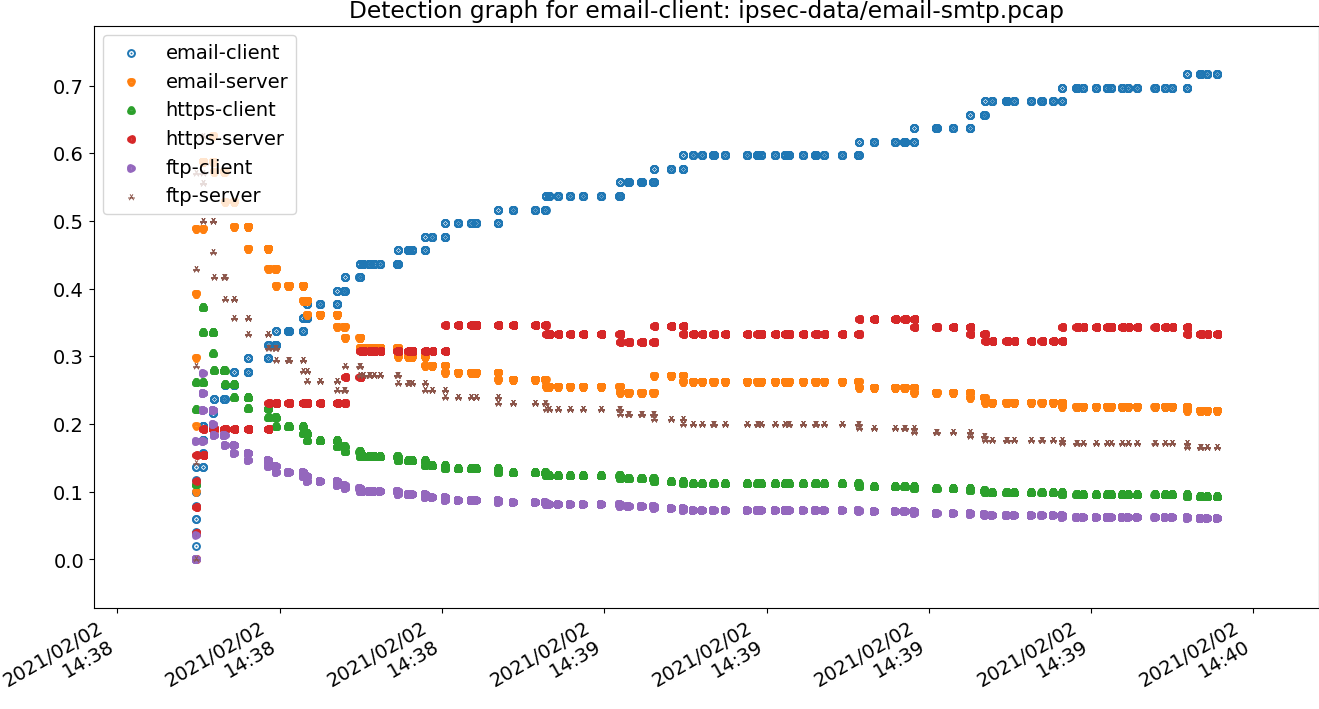
This example graph shows that after a number of packets the email-client label becomes the most likely prediction among the options being graphed.
Selecting a sub-algorithm to use
gold-miner supports four different (sub-)algorithms for identifying
traffic:
comparison
comparison-wide
linear
lms
The following algorithms are available for use:
algorithm: comparison
This is the default, and works best with entirely labeled traffic with no unknown traffic expected. It works by comparing an unknown flow against all known profiles to differentiate among the different types in the training profile. Thus, it will not work when applied to a traffic sample with an unprofiled traffic flow within it.
algorithm: linear
The linear algorithm calculates the difference from a given flow vs
the training profile, regardless of what the other training flows use.
This may succeed at times when the comparison algorithm doesn’t,
especially in cases of unknown traffic being mixed in with the traffic
being prioritized.
algorithm: lms
The lms algorithm is similar to the linear algorithm, but uses
the common square of the difference instead of a linear distance. These
two algorithms usually perform closely together in performance but one
may be better than another.
algorithm: comparison-wide
This is rarely the right algorithm to use, but is left in for the moment. It may go away in the future.
JSON output
The gold-miner tool can also output a stream JSON records if that’s
easier to parse. Run gold-miner with -j to enable this
feature, or -J to output a flattened JSON output.
Command Line Arguments
introduction - CLI interface
Scans an interface or pcap file for the likelihood of traffic within an ipsec/encrypted tunnel for a particular class that you may want to prioritize.
introduction [-h] [-i INTERFACE] [-r PCAP_FILE] [-p TRAINING_PROFILE] [-t THRESHOLDS] [-j]
             [-J] [-u] [-g GOLD_PROFILES [GOLD_PROFILES ...]]
             [-a [ALL_PROFILES [ALL_PROFILES ...]]] [--algorithm ALGORITHM] [-n MAX_PACKETS]
             [-N REPORT_EVERY] [-L] [-C] [-P] [-R] [-k SIZE_KEY] [-F PACKET_FILTER]
             [-w HIGH_LOW_WATERMARK HIGH_LOW_WATERMARK] [-3] [--timing]
             [-T SEARCH_WINDOW_LENGTH] [-U SEARCH_WINDOW_TIME_FILE] [--log-level LOG_LEVEL]
             [--log-file LOG_FILE] [--window-analysis]
             [output_file]
introduction positional arguments
output_file- Where to send the output data to (default:<_io.TextIOWrapper name='<stdout>' mode='w' encoding='UTF-8'>)
introduction optional arguments
-iINTERFACE,--interfaceINTERFACE- The interface to monitor for ESP traffic (default:None)-rPCAP_FILE,--pcap-filePCAP_FILE- Read in a PCAP file to analyze (default:None)-pTRAINING_PROFILE,--training_profileTRAINING_PROFILE- The training profile to read for calculating percentages (default:None)-tTHRESHOLDS,--thresholdsTHRESHOLDS- Threshold file to use for determining success (default:None)-j,--output-json- Output data in json format-J,--output-flattened-json- Output data in json format, but flattened-u,--output_ui- Output data in a window-gGOLD_PROFILES,--gold-profilesGOLD_PROFILES- profiles to identify as'gold'; put multiple separated by ,s in an argument (default:None)-aALL_PROFILES,--all-profilesALL_PROFILES- Keys to use for all the columns (gold and non-gold) (default:[])--algorithmALGORITHM- Algorithm value to use (lms, linear, comparison) (default:comparison)-nMAX_PACKETS,--max-packetsMAX_PACKETS- Maximum number of packets to read (default:-1)-NREPORT_EVERY,--report-everyREPORT_EVERY- only report results every N packets (default:None)-L,--live-results- Print live results-P,--percentage- Display results as a percentage-R,--raw-values- Display raw-value results instead of confidence-kSIZE_KEY,--size-keySIZE_KEY- The key to use for pkt size data (default:e_pkt_len)-FPACKET_FILTER,--packet-filterPACKET_FILTER- Only process these sniffed packets (default:None)-wHIGH_LOW_WATERMARK,--high-low-watermarkHIGH_LOW_WATERMARK- Use high/low watermarks to restrict output. The first argument should be the high value, and the second the low value. (default:None)-3,--three-tuple-only- Only use 3-tuples for analyzing packets instead of 5--timing- Add the analysis time length information to the output-TSEARCH_WINDOW_LENGTH,--search-window-lengthSEARCH_WINDOW_LENGTH- Fixed time stamp length to check data over (default:None)-USEARCH_WINDOW_TIME_FILE,--search-window-time-fileSEARCH_WINDOW_TIME_FILE- A FSDB file of times to search per packet size (default:None)--log-levelLOG_LEVEL,--llLOG_LEVEL- Define the logging verbosity level (debug, info, warning, error, fotal, critical). (default:info)--log-fileLOG_FILE,--lfLOG_FILE- Define a logfile to save logging output to instead of stderr (default:None)--window-analysis- Do window analysis (developer mode)